PSE (Pagos Seguros en Línea) is a payment method available in VTEX stores for transactions in Colombia. If you already use PSE in your store and want to offer a special payment condition to customers based on the type of bank selected, you can create a regular promotion for PSE.
To configure promotions by bank using PSE, you need to:
Identifying the bank code
Each bank that makes payment transactions associated with PSE has a specific identification code. To find the bank code for which you want to create a new regular promotion, follow the steps below:
-
Go to your store checkout.
-
In the payment section, click the PSE option.
-
Open the Web Developer Tools page in your browser. If you have any doubts, see below how to do this based on the browser you're using:
-
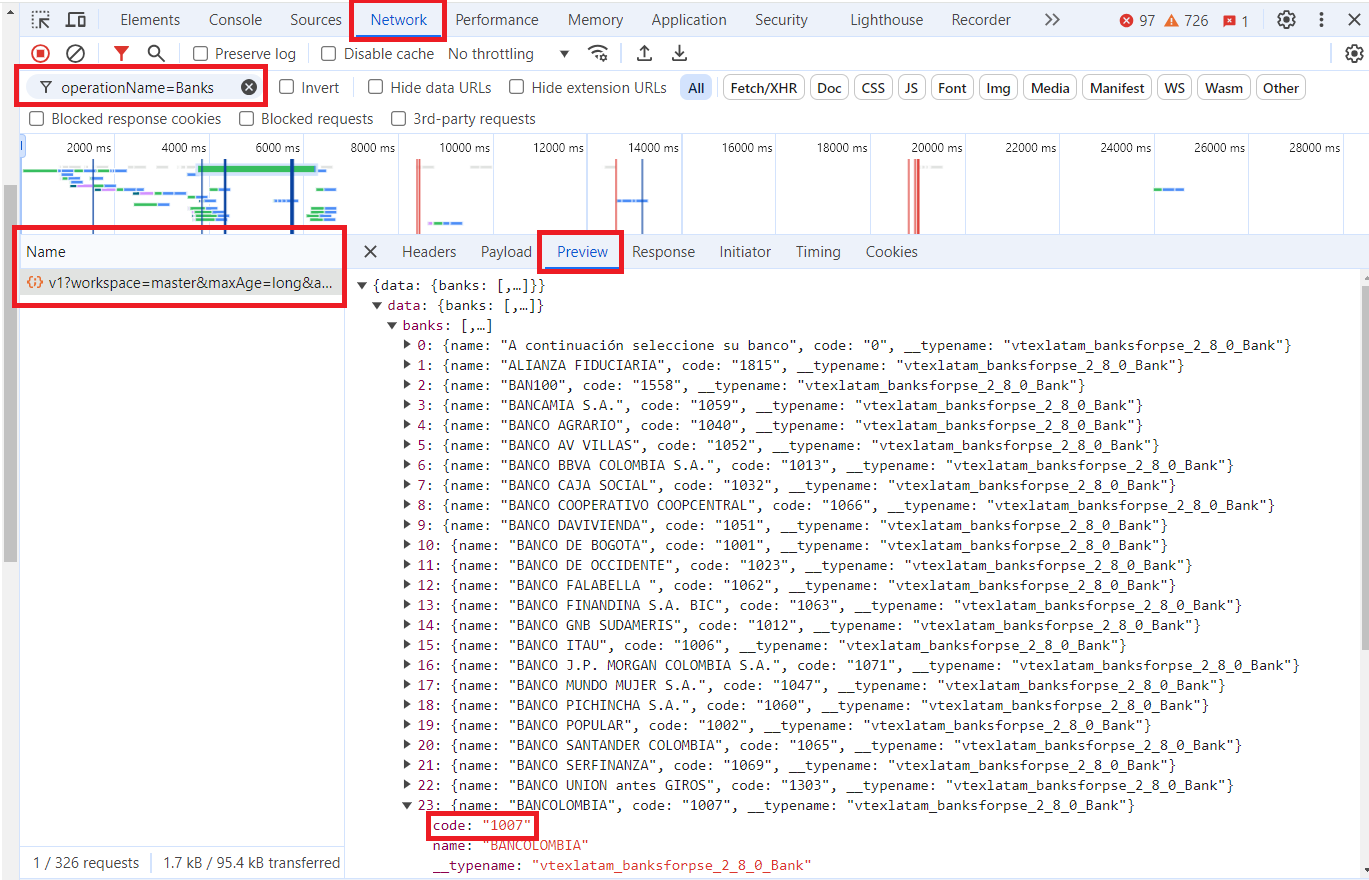
Click the Network tab.
-
Refresh the page by clicking F5 or the refresh button on your browser.
-
In the search bar, type operationName=Banks.
-
Click the result displayed in the Name column.
-
Click the Preview tab.
-
In the data component, select the banks component.
-
Click the name of the bank for which you want to create the promotion and note down the 4-digit number described in the code field.
Creating a PSE promotion
After getting the bank code, create the regular promotion following the steps below:
- In the VTEX Admin, go to Promotions > Promotions, or type Promotions in the search bar at the top of the page.
- Click the Create Promotion button.
- Select the Regular option.
- In the Name field, enter the name you want to use to identify the promotion.
- In Expiration date, set the period in which the discount will be applied to customers using PSE with the configured bank.
- In What is the type and amount of discount?, define the discount type for the promotion and enter the amount.
The "Percentage" type is the most common for bank promotions.
- In the To which items will this promotion apply? section, select whether the discount for payments made with the desired bank via PSE should apply to all store products or only to specific product types. If you want to restrict the promotion, configure the other fields in this section.
- In the What are the conditions for the promotion to be valid? section, select the Marketing tags option and type pse-discount-for-bank-code-XXXX, replacing the XXXX with the code of the desired bank.
- Select the Payment method option and choose PSE.
- In the Restrictions and limitations of use section, if you want the promotion to apply with other store promotions, select the Apply with other promotions option.
PSE promotions will always be added to the cart when the Apply with other promotions option is selected and other promotions are applied to the products. If the Apply with other promotions option is not selected, the checkout will use only the promotion that gives the biggest discount on the products.
- Click Save.