In addition to the Bundle studio, Live Shopping events can be transmitted from external studios with the same functionalities. Some examples are:
- StreamYard
- OBS
- Streamlabs
- vMix
When transmitting from an external studio, don't try to duplicate the event transmission via Bundle or another studio. Live Shopping allows only one transmission per studio, and the platform will recognize only the first studio that starts streaming the event.
Stream method for external studios
To transmit your event from an external studio, follow the steps below:
- In the VTEX Admin, go to Apps > Live Shopping > Events, or type Events in the search bar at the top of the page.
- Click the arrow button of the event you created to access the event configuration page.
- Turn on the event, by clicking the toggle switch Turn On at the top right.
- Select the
Streamtab. - On the Stream method page, in Option 2 - Push stream, copy the Server URL and the Server Key values.
- Go to the external studio stream settings and paste the values as shown below:
- Server: Enter the
Server URLyou copied. - Server Key: Enter the
Server Keyyou copied.
- (Optional) Usually click a confirmation button to save settings.
Stream settings - Transmission quality
For a high-quality stream, including on devices with limited connectivity, you must configure the studio transmission quality settings. The recommended values are available on the Stream method page, in Stream settings section, as shown in the image below:
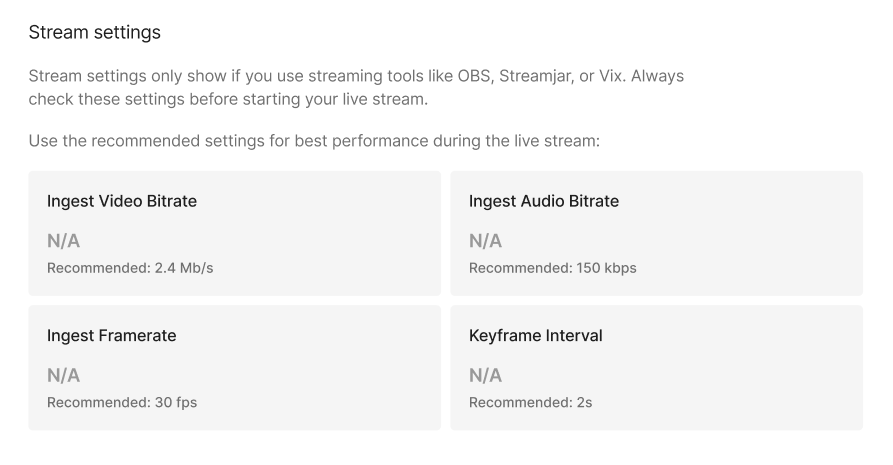
To configure the studio transmission quality, in your external studio, set the following fields to these values:
- Output = IngestVideoBitrate: 2.4 Mb/s
- Output = IngestAudioBitrate: 150 kbps
- Video = IngestFramerate: 30 fps
- Output = KeyframeInterval: 2 seconds
Before the live stream
Before you start the live event, make sure everything works properly:
- Check the preview to confirm the Live Shopping component is placed correctly.
- Check the event settings.
- Check your stream method configuration, including the transmission quality settings.
After that, you can start transmitting the event. Since the steps vary for each studio, we recommend checking the official documentation of that particular studio.
After live streaming from an external studio
When the transmission has ended and the event status is Completed, you must hide the Live Shopping component or remove the script, depending on your frontend solution.The audience will continue to see the black screen on your site or landing page until you complete this step.
For the complete instructions, check Hiding or removing the Live Shopping component.