In the VTEX Admin, when you go to Apps > Live Shopping, or type Live Shopping in the search bar at the top of the page and click the arrow icon of a created event, you access its Event Information page. Under the Manage tab, you'll find the following setup options, divided by page section:
- Layout type - Configuring the style
- Chat - Configuring the administrator name
- Promotions - Configuring coupons and promotions
- Settings - Configuring features
- Product Highlight - Configuring collection display
- CMS Configuration - Configuring content presentation
This article describes the main settings for an event. It doesn't cover all sections of the Event Information page. For more information, see Live Shopping: Events article.
Layout type - Configuring the style
The layout defines the screen format seen by customers during the event transmission; therefore, it determines the event recording format.
The broadcasting studio uses the layout of the first person who enters it. You must set up the event layout before entering the streaming studio. Even though you can change the layout through the VTEX Admin later, you can't change it within the streaming studio.
Screen format
In the Layout Type section, you can choose the desired layout format for broadcasting the event from the following:
- Landscape (16:9): Provides a horizontal view of the transmission, optimized for desktop screens.
- Portrait (9:16): Provides a vertical view of the transmission, optimized for mobile screens.
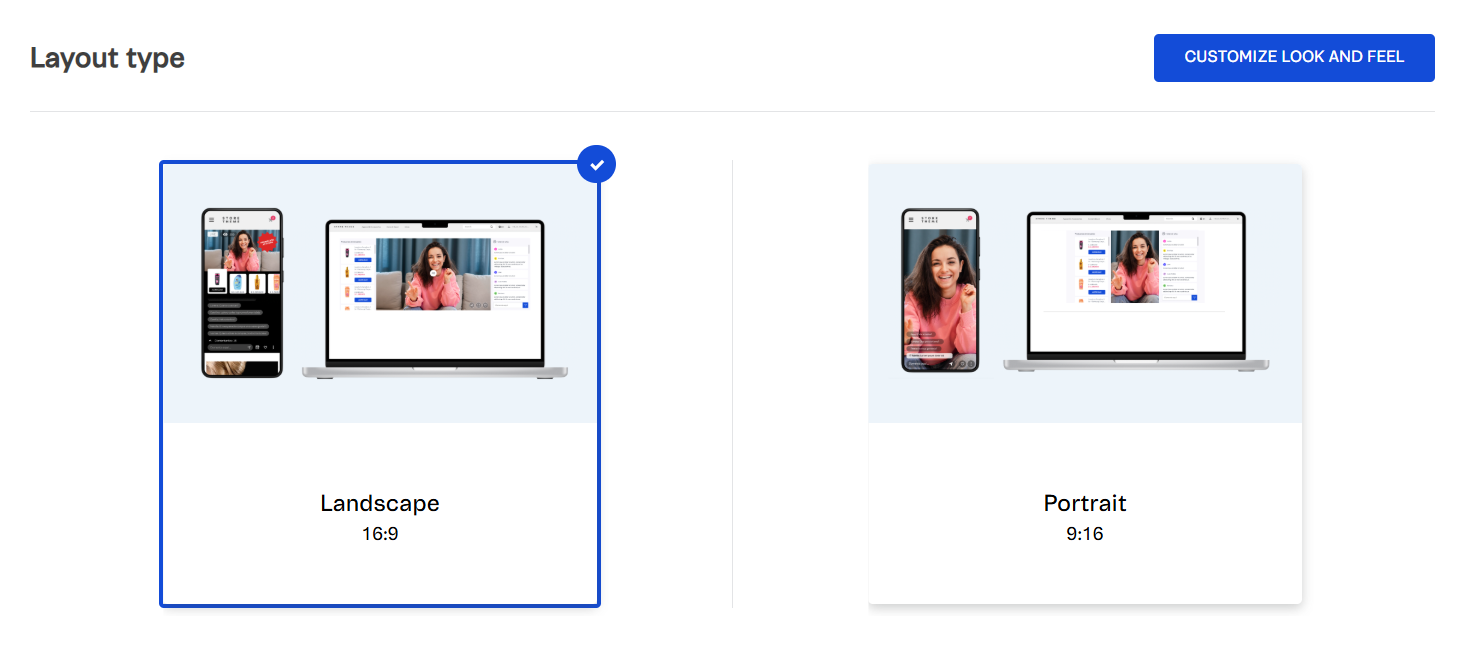
The screen format is Landscape (16:9) by default, but you can change it by clicking the Portrait (9:16) view. The blue checkmark indicates the selected option.
Note that once the transmission using Bundle studio starts, the screen layout can't be changed anymore. To change it, you would need to create a new event.
Style customization
By default, an event has a neutral visual style that is suitable for stores and doesn’t affect brand image. However, if you want, you can customize the following styles:
- Text font
- Colors
- Product cards
- Product price
- Add to cart button
- Featured product
- Product section title
- Chat title
- Send message button
The customizations above are made by clicking the Customize the look and feel button and completing the Look and Feel page to align with your preferences. For complete instructions, check Live Shopping: Events.
Chat - Configuring the administrator name
The Chat section is where you manage the live chat during your event. If you want to configure a specific name to identify the administrator sending messages, follow the steps below:
- In the Chat section, click the profile icon.
- In the Store Information window, enter the desired administrator name in the box.
- Click
Confirm.
To learn how to pin messages, block users, delete messages, and perform other actions in the event chat, check Live Shopping: Events.
Promotions - Configuring coupons and promotions
In this section, you can configure coupons and promotions based on event viewers or likes, for example. The available options will be those previously configured in the Promotions module.
To offer a promotion during your Live Shopping event, follow the steps below:
- In the Promotions section, click
New promotion. - Select a promotion option using the dropdown menu.
- Choose a variable:
- Likes
- Comments
- Viewers
- Orders
- In the Goal field, enter the condition the audience must meet to activate the coupon or promotion. This information isn't visible to the public and is limited to 20 characters. See below an example for each variable:
- Likes: Reach 100 like reactions.
- Comments: Get 150 comments.
- Viewers: Gather an audience of over 200 people.
- Orders: Receive the first 100 orders.
Coupons become active immediately once the goal is met. Promotions activate five minutes after the goal is met.
- In the Display message field, enter the text to be shown to your audience about the goal to unlock the promotion or coupon. Limited to 20 characters. For example,
40% off. - Select an animation to display the promotion or coupon during the event.
- Click
Save.
Once a promotion has been created, it will be displayed in a table with the following columns:
- State: Allows activating or deactivating the promotion by switching the toggle. Although promotions or coupons are automatically activated when the audience meets the goal, you can manage their activation status during the event.
- Promotion: Name that identifies the promotion.
- Variable: What the promotion is based on, which can be
Likes,Comments,ViewersorOrders. - Goal: Variable value that, once achieved, triggers the promotion activation.
- Actions: Allows editing or deleting the promotion. All promotion settings can be edited. Deleting removes the promotion only this event’s configuration, not from the Promotions module.
Settings - Configuring features
In the Settings section, you can enable or disable the following event features:
| Topic | Feature |
|---|---|
| Chat |
|
| Player |
|
| Products |
|
Product Highlight - Configuring collection display
The Product Highlight section is where you manage highlighting products during the event. The products displayed belong to the collection you selected when creating the event, or to the collection you add or update before or during the stream.
To ensure your collection appears correctly in a Live Shopping event, we recommend creating it at least a few hours in advance. This allows the platform enough time to index the information. Otherwise, the page may be cached during the event, which could prevent the collection from displaying properly.
To highlight a product, activate the toggle switch in the Actions column. You can choose two products at a time. Once selected, the product will display above the column names.
CMS Configuration - Configuring content presentation
In the CMS Configuration section, you can set up how the content will be presented during the event. The existing functionalities are the following:
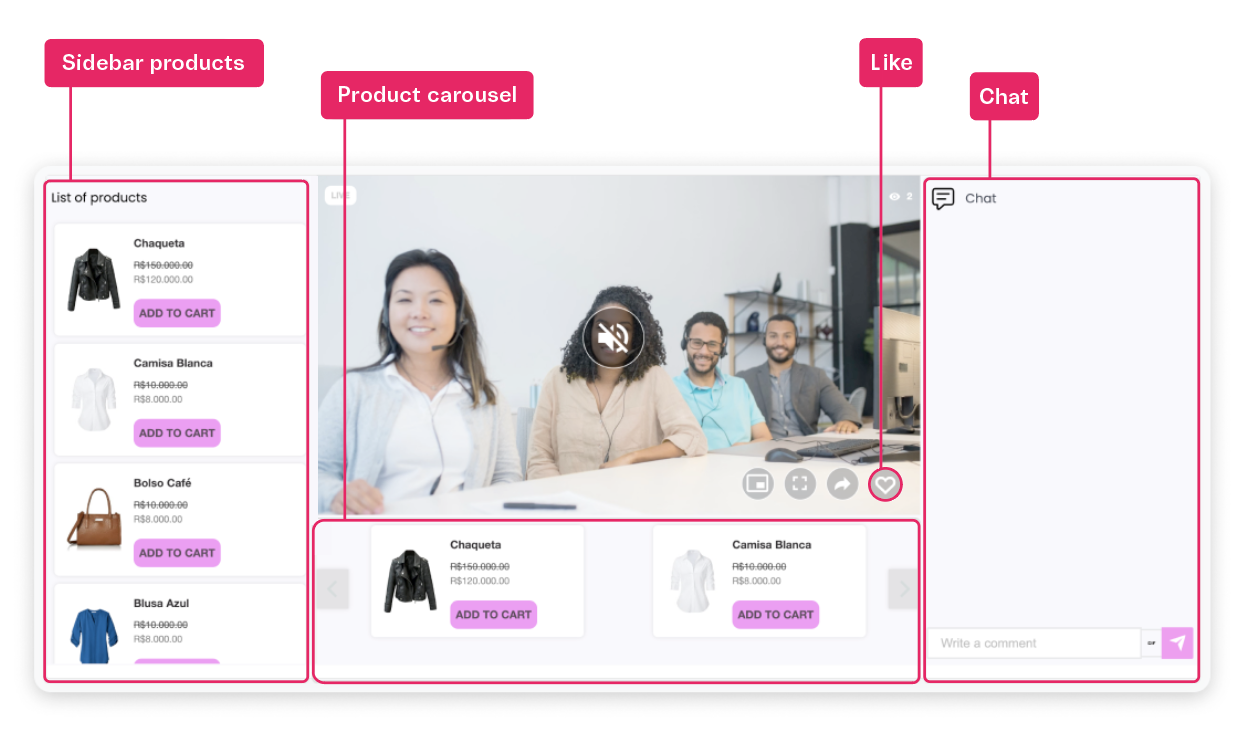
- Sidebar products: Displays a sidebar that showcases a collection of products alongside the video player. The products are shown vertically on the left side of the player.
- Product carousel: Displays a carousel with a collection of products in a landscape view under the video player during the live event.
- Chat: Enables your audience to interact via chat during the live event. Note that if the chat is hidden, the question option will also be hidden, as this functionality is displayed above the chat.
- Like: Allows users to react during the live event using the heart-shaped like button.
- Checkout cart: Provides an
Add to cartbutton that, when clicked by your audience, opens the checkout with the product added to the customer shopping cart in a new tab. The picture-in-picture (PiP) mode will also be activated, allowing the customer to continue watching the live stream while completing the purchase. - Quick view: Allows your audience to view the live event while seeing product variations. When the customer clicks the
Add to cartbutton, a quick product view opens up without hiding the event transmission. This allows the customer to choose the size and color of a product, for example, while still watching the event.- If this option is disabled, when the customer clicks
Add to cart, a new tab with the Product Details Page (PDP) opens and the PiP mode automatically activates so that the customer keeps watching the live stream.
- If this option is disabled, when the customer clicks
- Infinite scroll: Implements an infinite scroll for the sidebar products option that automatically scrolls every N seconds, so that your audience can view all the products without any additional action.
- The automatic scroll speed is set to 10 seconds by default, but you can change it by entering the desired number in the field. We recommend configuring within 3 to 100 seconds.
All the functionalities above are enabled by default, except Product carousel and Checkout cart.
Script for template
To embed the live-streaming app in your storefront with your preferences, you can use the HTML tag found under the Script for template field. You must choose one of the following options:
- CMS template: For stores using Legacy CMS Portal.
- External template: For external stores.
Preview
To have a preview of the event, in Event Information > CMS Configuration, click the Preview button. A new tab will open and play the event as your audience will view it. This simulation helps validate everything is working properly by displaying elements such as:
- Chat
- Player
- Product sidebar
- Product highlights
We highly recommend doing additional checks on the entire website to ensure everything is working properly. The Preview checks only certain Live Shopping components.